[gtranslate]

Have questions?
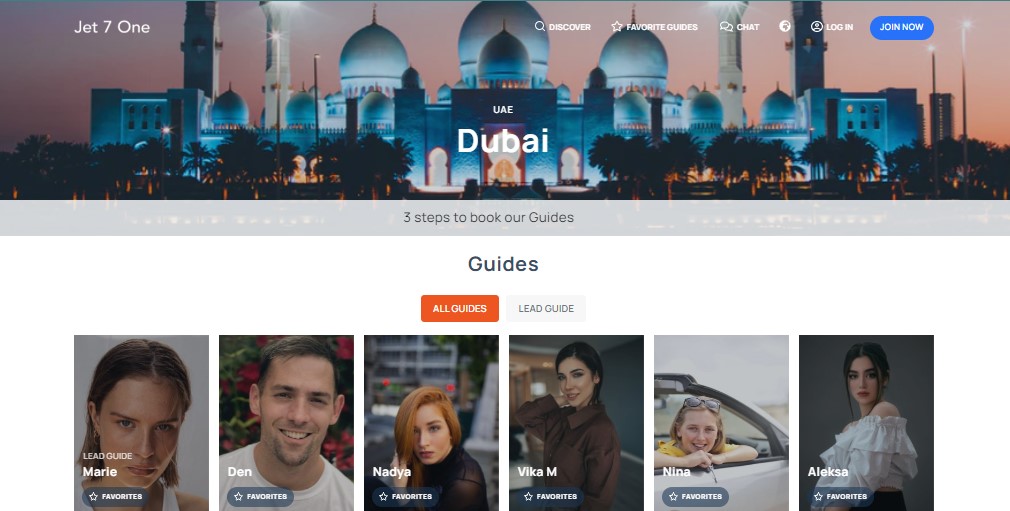
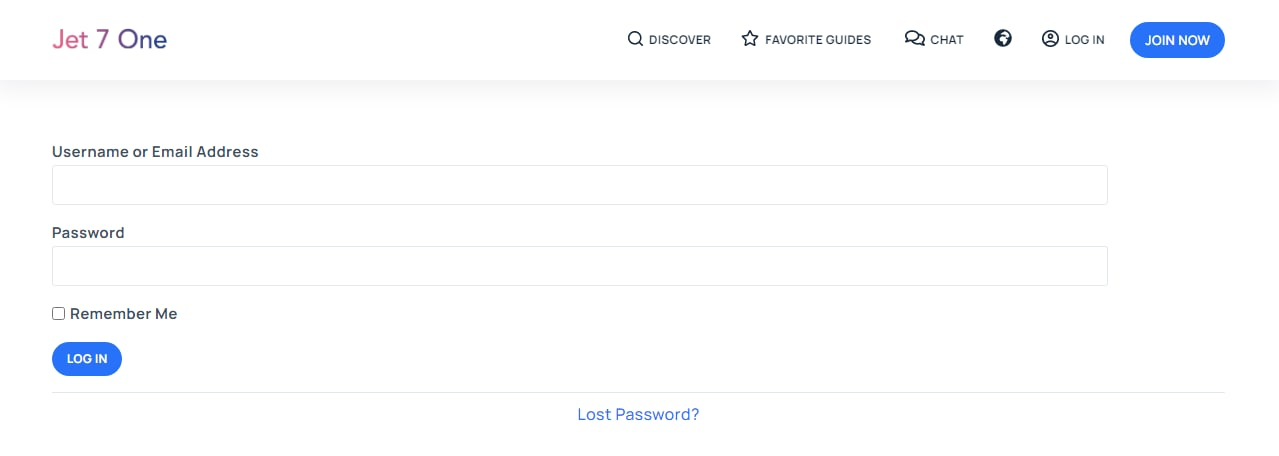
In order to add your preferences (interests, region, languages) in Public profile (it will be displayed on Jet 7 One platform after verification) you need go on Log In tab and log in as our local guide – it’s the 1 step to your perfect local profile
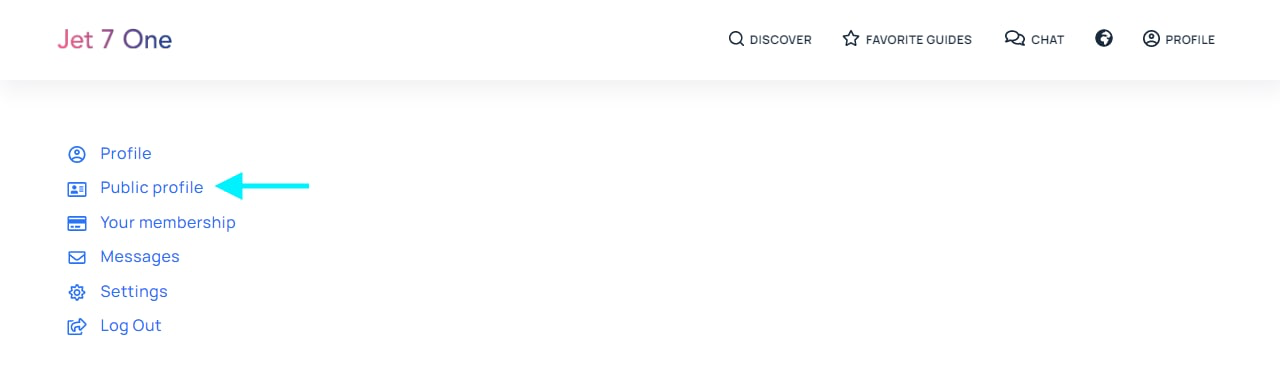
2. Go to your Public profile
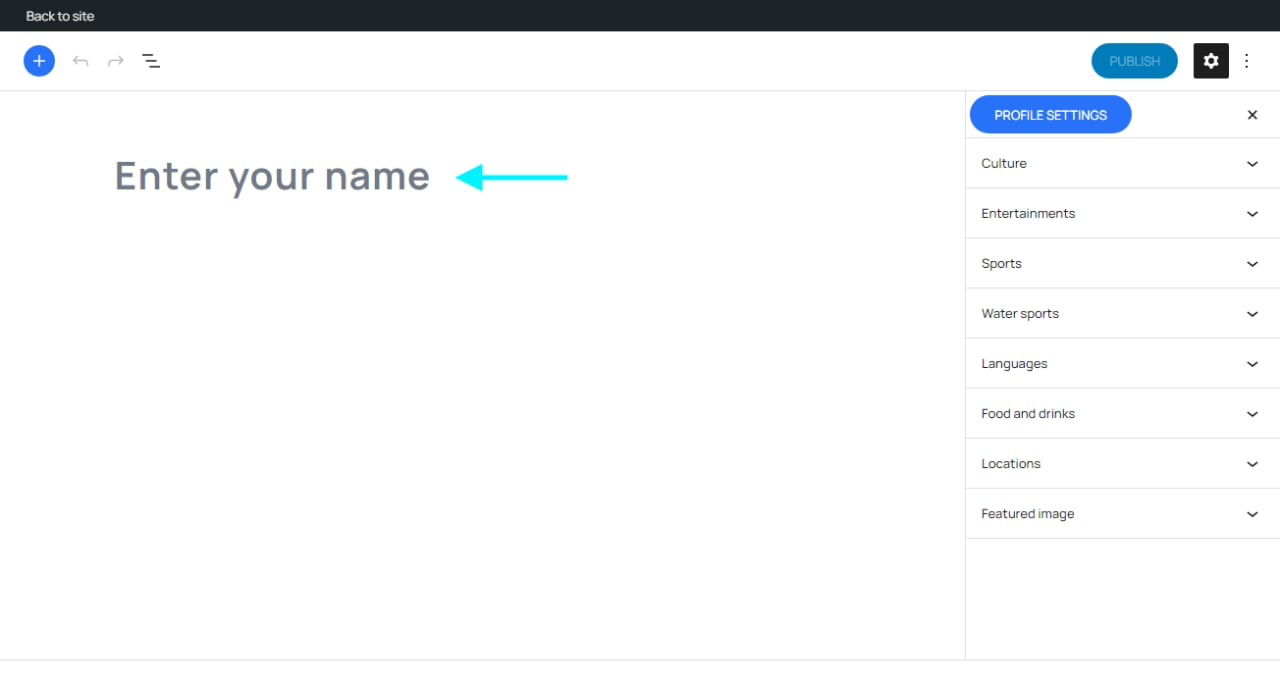
3. Add our name here. It will be displayed on local’s preview photo and local’s profile info tab
4. Tap on “+” or Add button in left top corner of your screen in order to add your images, text and other needed information that you want to share
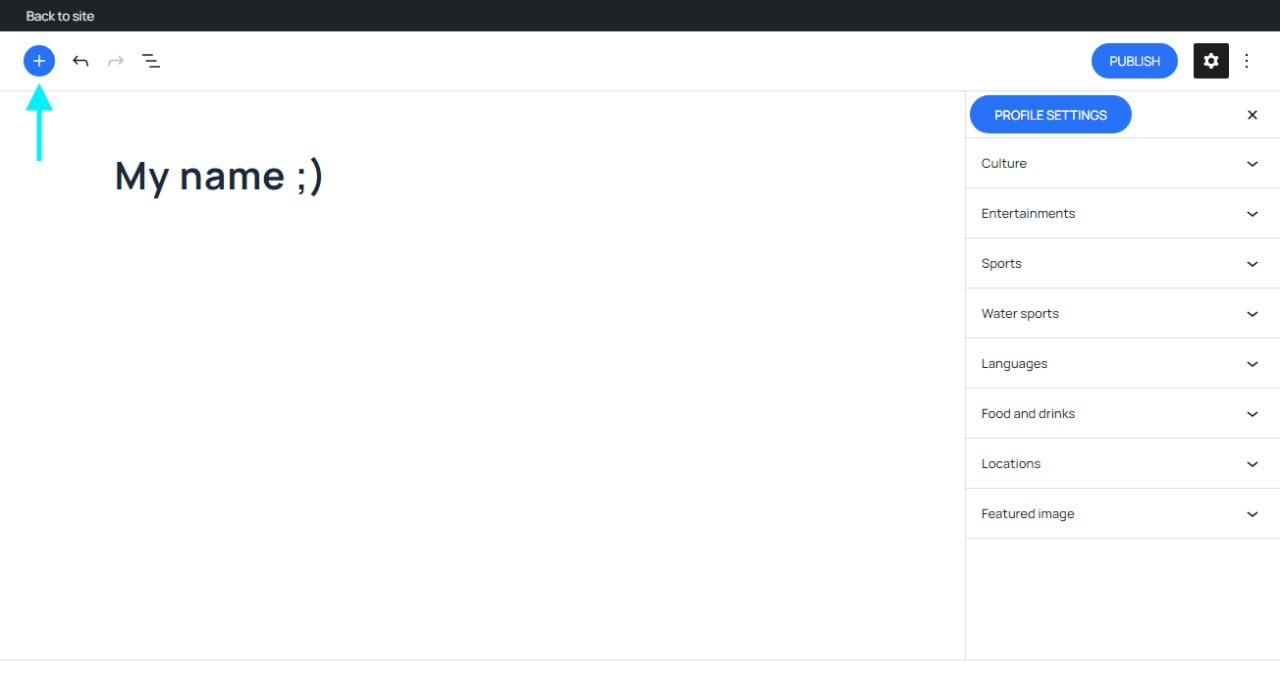
5. Choose any one from 5 different options, such as:
- Paragraph – it allows you to easily craft content. You can write your text here like a regular document. This block is your “About me” field
- Heading – it can help structure your profile and make your text more readable by humans as well as search engines
- Image – use it to insert an image onto your profile. To add the Image, click on the “+” and search for “image”, click choosen image to add it to profile page
- Gallery – it allows you to easily add multiple photos and automatically arrange them attractively. Upload allows you to upload a new image or multiple images to the Gallery and your media library
- Media & text – it allows you to place an image side-by-side with text. To add your image, you can upload a file from your computer or select from your existing Media library
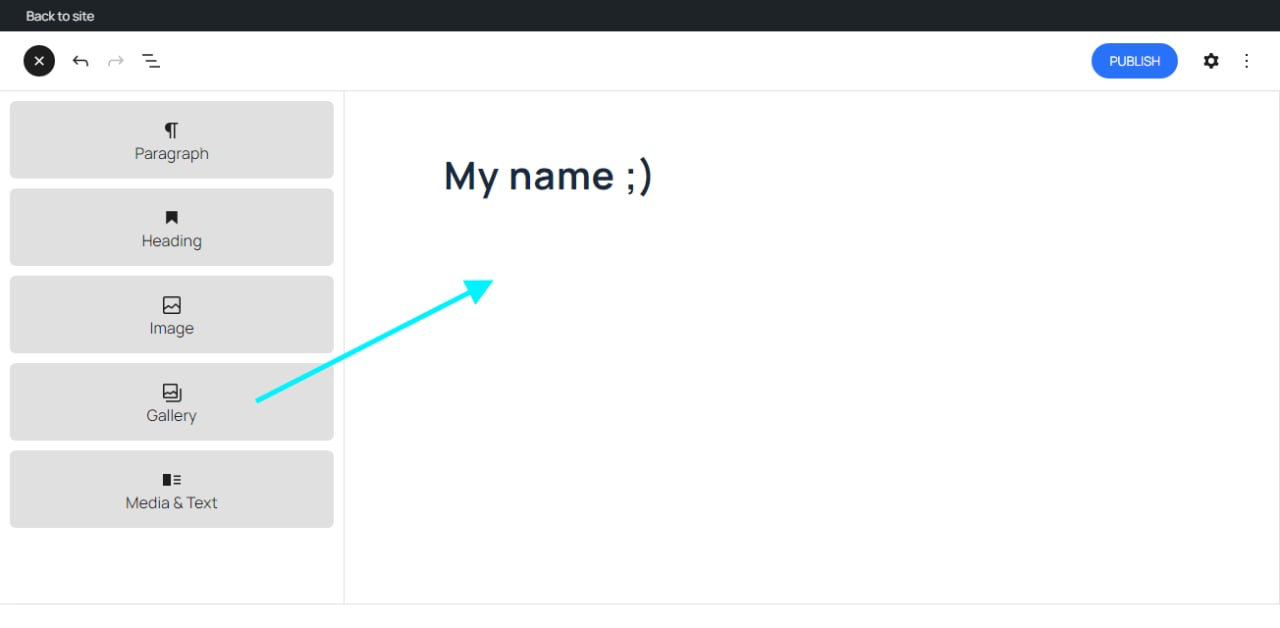
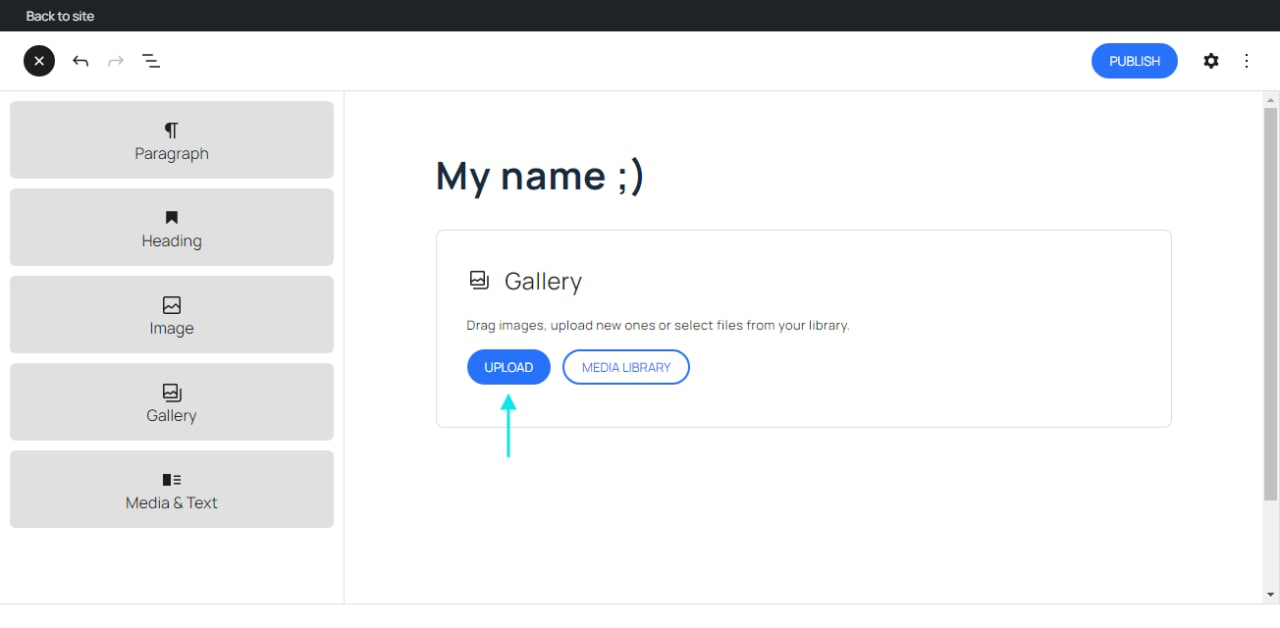
6. In order to add images you need to choose Gallery option and upload images. Take note that Public profile gallery includes 5, 10 or 15 photos based on your Membership Level. You can check info here.
When you add a Gallery option, you’re given two options, Upload and Media Library.
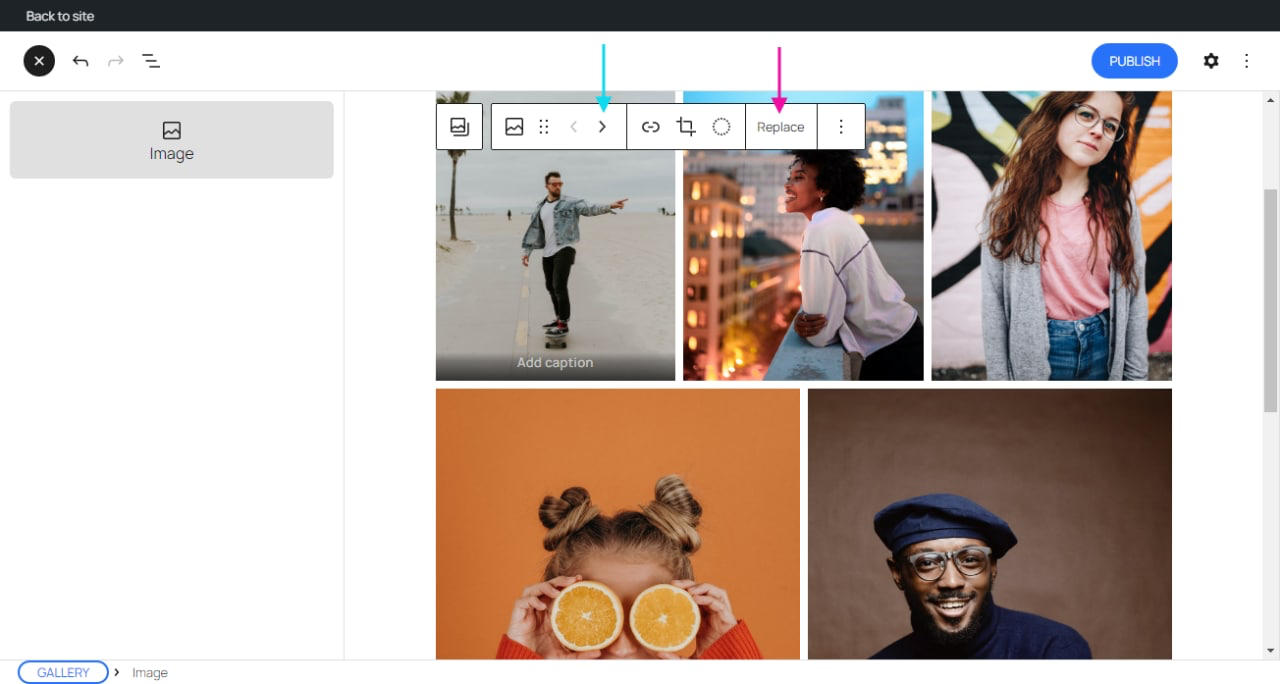
7. In the Gallery toolbar, there are movers (shown by turquoise arrow) so you can choose the order of your images exactly as you’d like. Or you can replace (shown by pink arrow) images in your gallery, it will allow you to upload or select another image from your library.
8. Well, we have your Gallery. Let’s add some text in your public Profile. You can also choose the paragraph option from the “Option Inserter” (+) pop-up window when you click on the (+) sign.
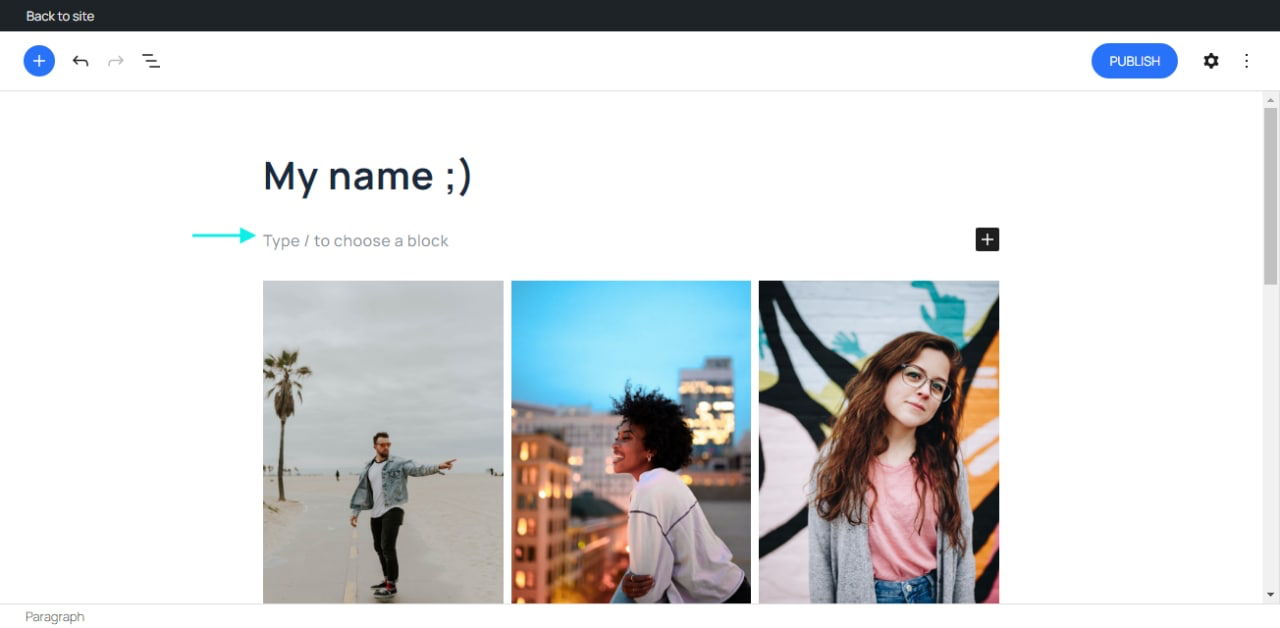
9. When you click on the Transformer button you can convert the paragraph block into another block type, by using the existing content. You could make a Quote out of the paragraph or a Heading or an ordered or unordered list.
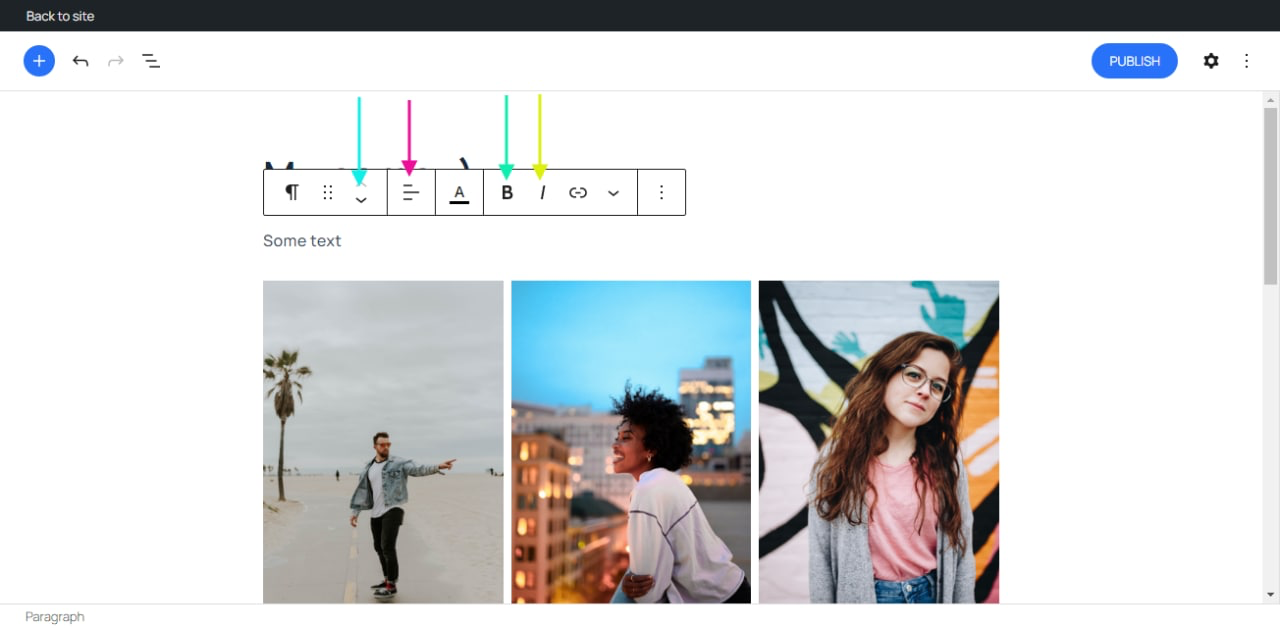
There are movers (shown by turquoise arrow) so you can choose the order of your images and text exactly as you’d like.
Use the alignment (shown by pink arrow) drop-down from the toolbar, you are able to align the whole paragraph text to the left, make it center-aligned or orient it to the right.
Bold and Italics (shown by light-green and yellow arrows) formatting have their own buttons on the Toolbar or they can made by shortcuts are CTRL+b (or Command+B) for bold and CTRL+i (or Command+i) for italics.
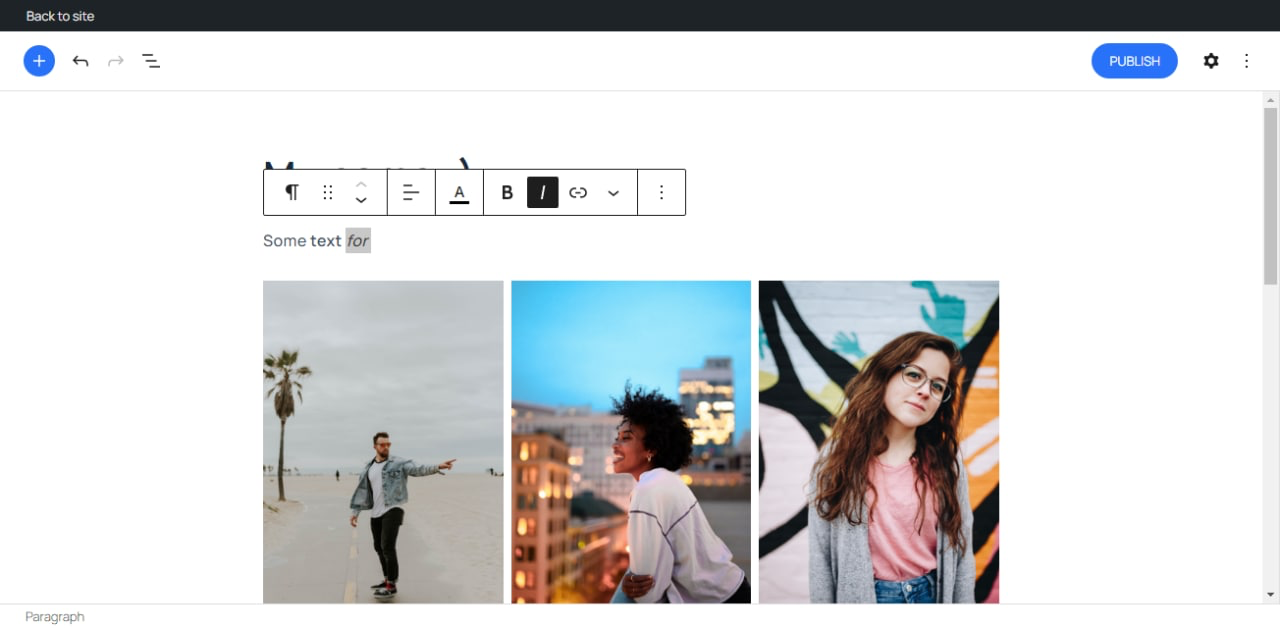
Use the chain link icon to insert a hyperlink to your highlighted text or use the CTRL + k (or Command+k) keyboard shortcut but take note that we restrict you to post your contacts details or your social networks links in your Jet7One public profile. Otherwis-e, we will be forced to suspend your profile on Jet7One platform. Check more info at FAQ for local guides and p.6 of Terms and Conditions
Or you can use toolbar with the drop-down for More Rich Text Controls, such as:
- Highlight option allows you to change the color for selected text and its background
- Use the inline code feature to format code snippets within your text differently
- Inline image feature allows you to add an image to your paragraph
- Using the Keyboard Input option allows you to add the
<kbd>tag to selected text - Strikethrough option adds a line through your highlighted text
- The Subscript option allows you to add subscript to your highlighted text
- Superscript option allows you to add superscript to your highlighted text
And the last one is 3 dots sign, it’s More Options such as:
- Hide Block Settings option hides (or shows) the Block Setting panel in the editor’s Sidebar
- Using the Duplicate option, you can create a copy of the selected block
- Insert before lets you add the previously duplicated block before the selected block
- Insert after lets you add the previously duplicated block after the selected block
- When you select the Edit as HTML option, you will be able to add more HTML code to this particular paragraph
- you can Lock the block to disallow moving and/or removing. If you lock the block, “Lock” icon will be shown at the Block Toolbar
- Select the Group option if you want to create a group of blocks and treat them as a unit. You can for instance add a common background color or other blocks to the group.
- with Remove Paragraph option you can delete the selected block from your content
10. Every profile has specific profile settings in the editor sidebar in addition to the options found in the options toolbar. If you do not see the sidebar, simply click the “cog” icon next to the Publish button.
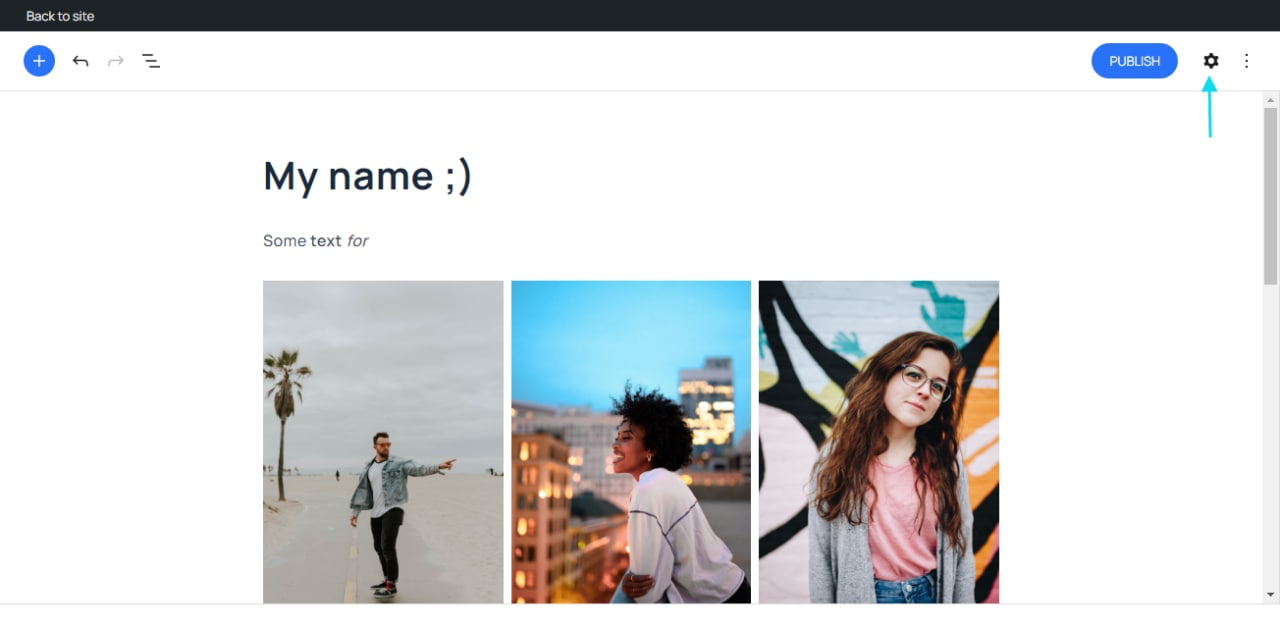
11. Add your preferences (interests, region, languages) in Profile Settings. They will be displayed on your Jet 7 One public profile after verification
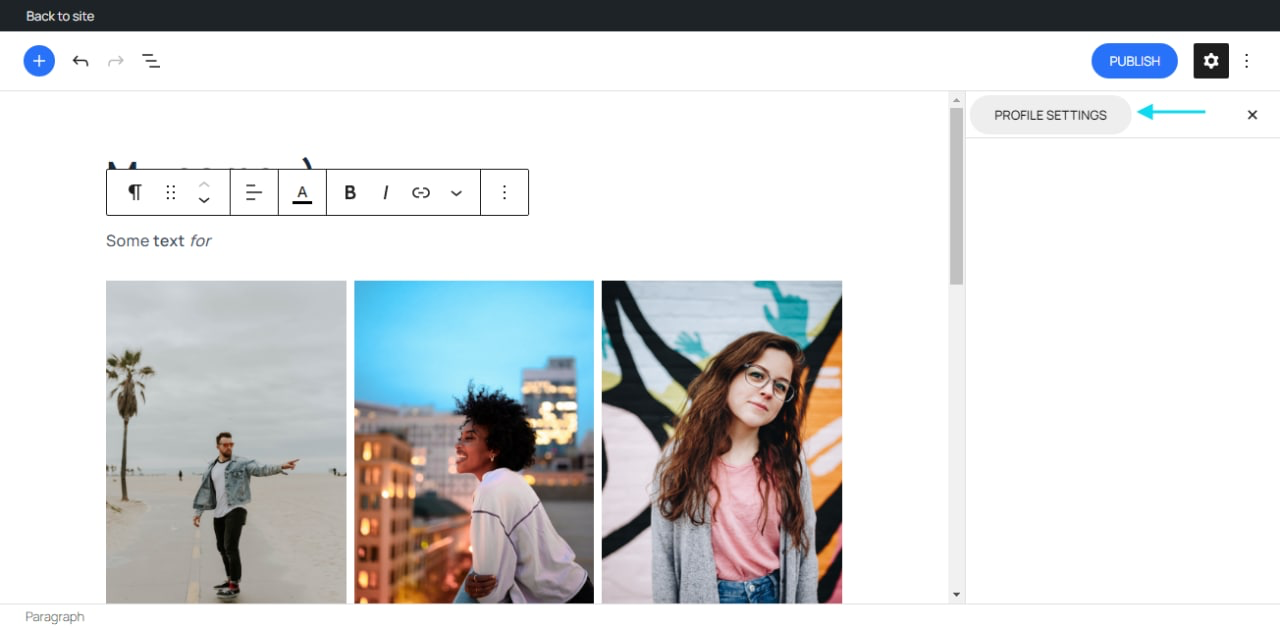
Make your choice in each of 7 topics that traveler can find you as like-minded person in your region. Our 7 topics are:
- Culture (city history, museum, monuments, art galleries, theatre, conservatory etc)
- Food & drinks (vegetarian, tasting room, winery, cognac cellars, restaurant, cooking, craft beer, wine, coffee etc)
- Entertainment (bar, night club, corporate event, concert, cinema, beach club etc)
- Sports (baseball, basketball, cycling, football, golf, hockey, ice skating, running, tennis, yoga, fitness, shooting, hiking, camping, wildlife area etc)
- Water sports (scuba diving, surfing, diving, SUP surfing, kayaking, yachting, snorkelling etc)
- Languages (select all languages that you can use during your guide tour)
- Locations (select the city where your can make your guide tour, you know this city and can show traveler interesting places as local guide)
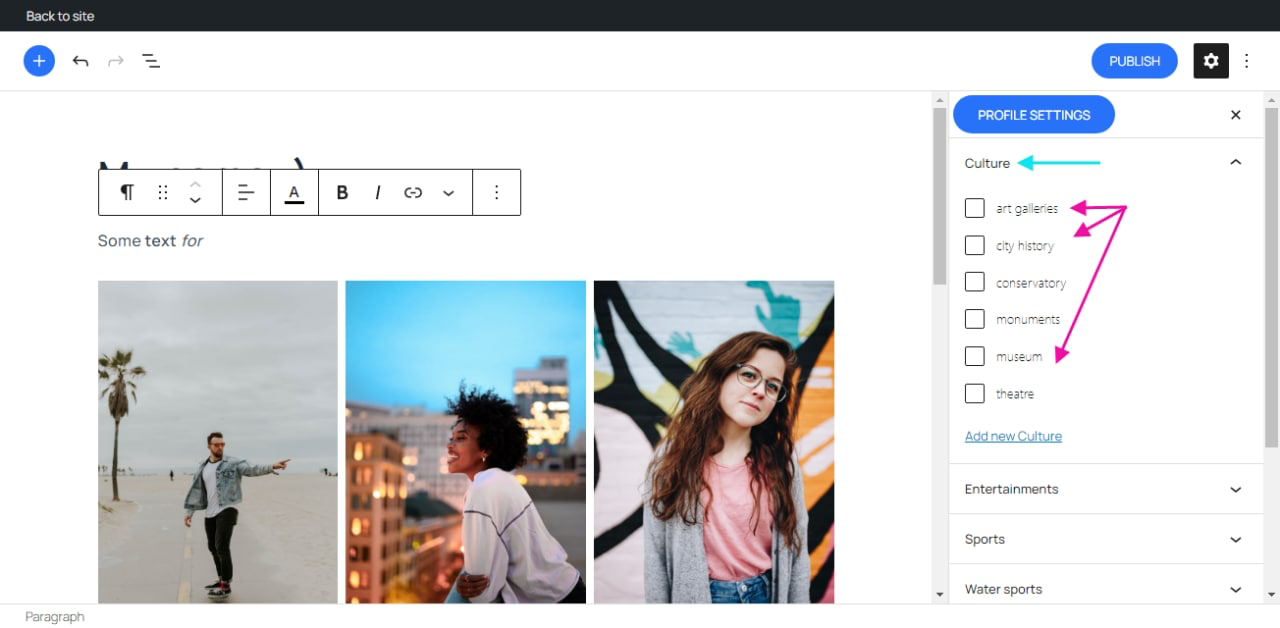
We have 7 basic topics + you can add new subcategory in each topic, we will verify your request based on regional specification. After it will be approved from our side, your public profile will be displayed with new subcategory and traveler can find you by using Discover feature.
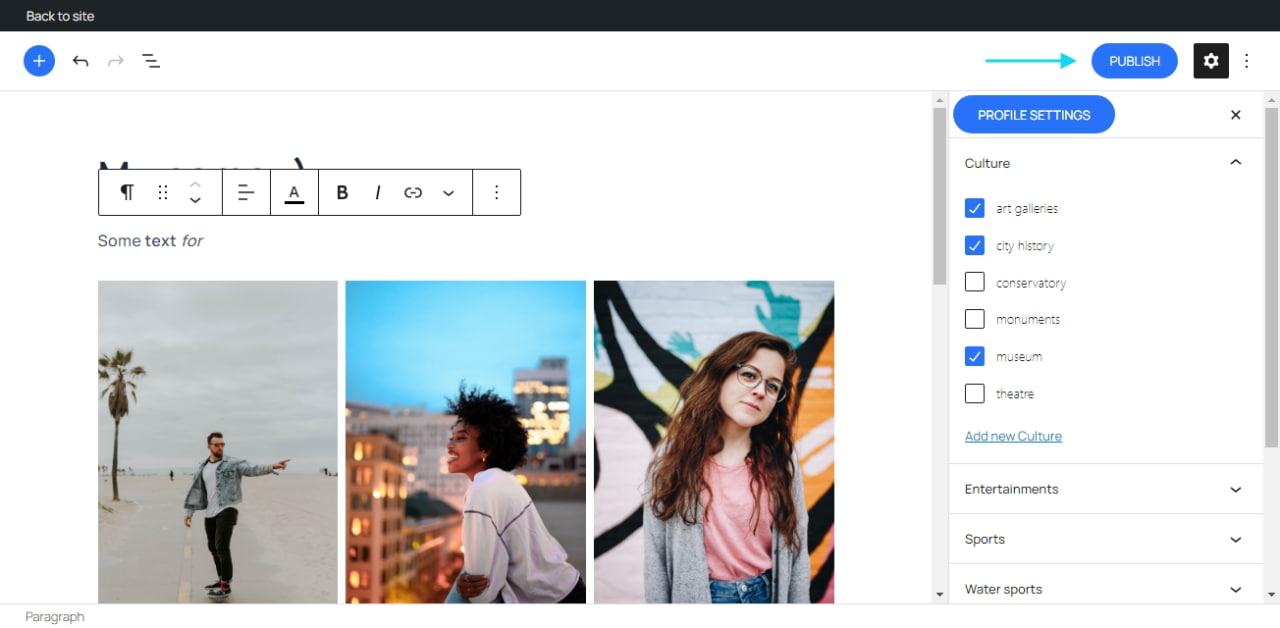
Don’t forget to add Featured image in Profile Settings (It will be displayed as your local’s preview photo) and tap on Publish button in order to send your Public profile on verification.
If you have questions about this Tutorial of creating public profile, you can reach us via chat, Contact form or write us directly to jet71one@gmail.com